 Diep Tran
695e84fda6
Diep Tran
695e84fda6
Create-TF-1639-User-can-manage-label

(cherry picked from commit 2797856516e363577e2e62822d14697a26d0d1c1)
2.8 KiB
2.8 KiB
Summary
Related EPIC
https://github.com/linagora/tmail-flutter/issues/1638
Definition
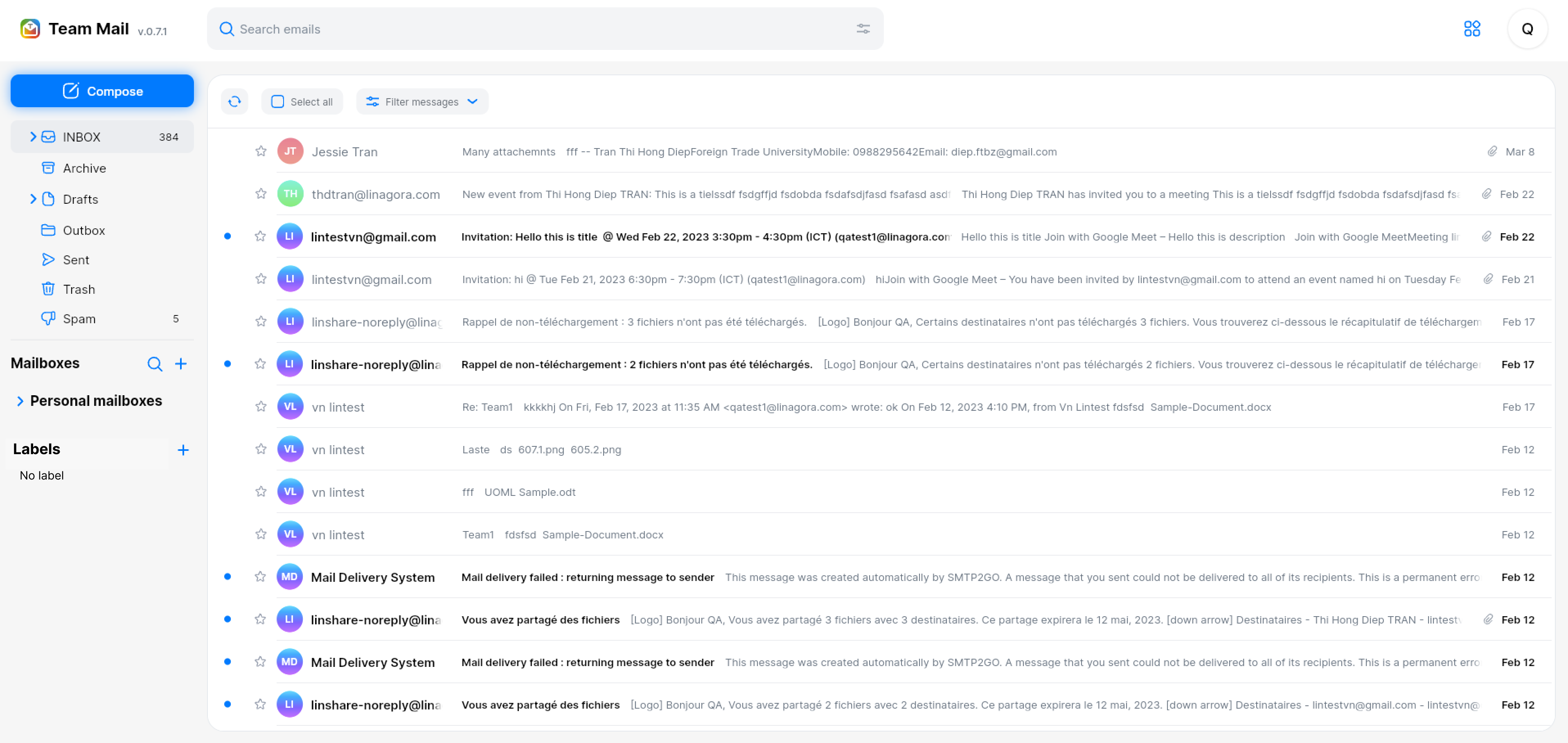
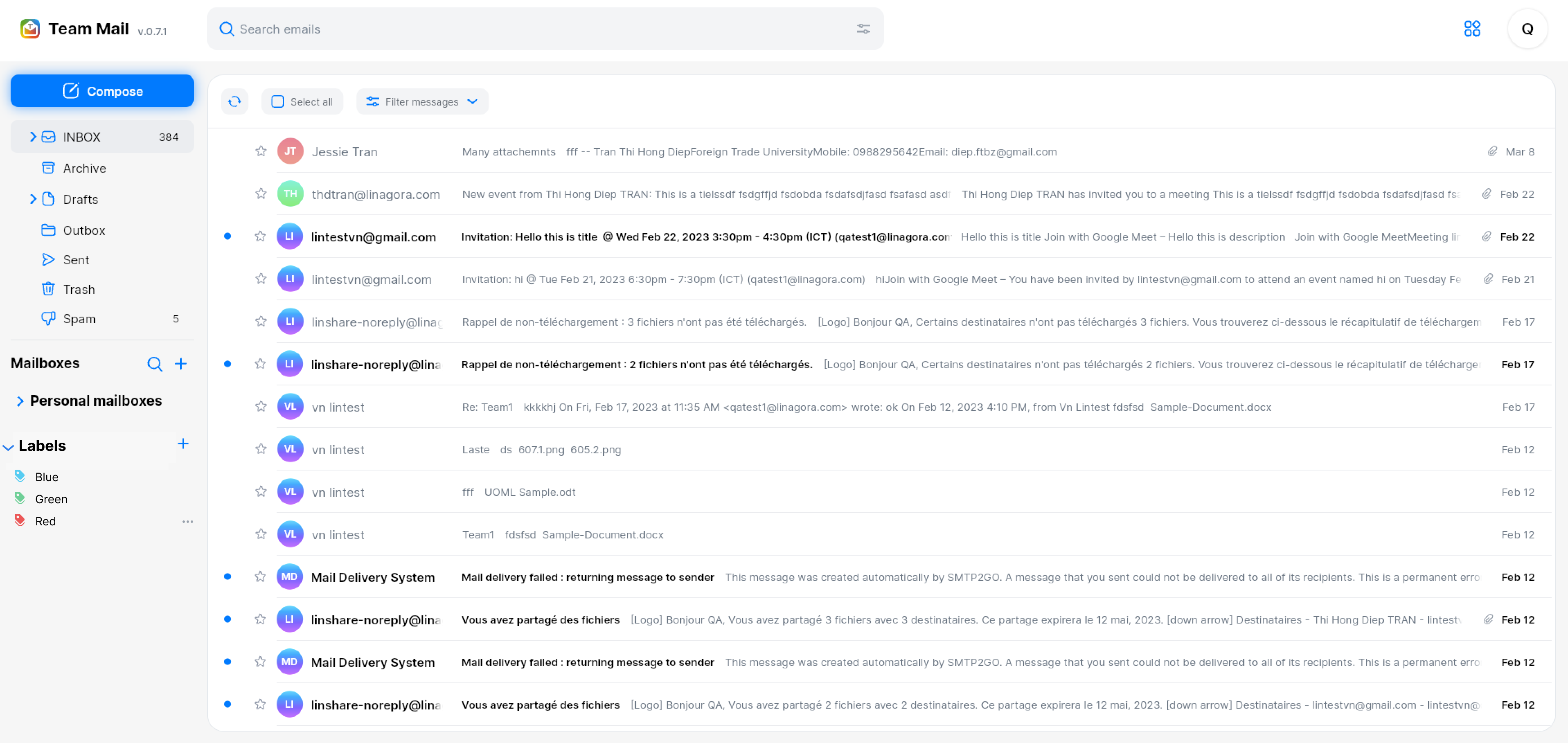
UC1. View label list in the left panel
- Given that I am a Tmail user and I have logged in successfully
- On the left panel, I can see a new category: Label
- Under this category, I can see list of label that I have created:
- Each label contain a tag icon with color, and label’s name
- If currently there is no label, there will be a text: No label under category’s name
UC2. Create a new label
- Next to category “Label” in the left panel, I can see a Create button
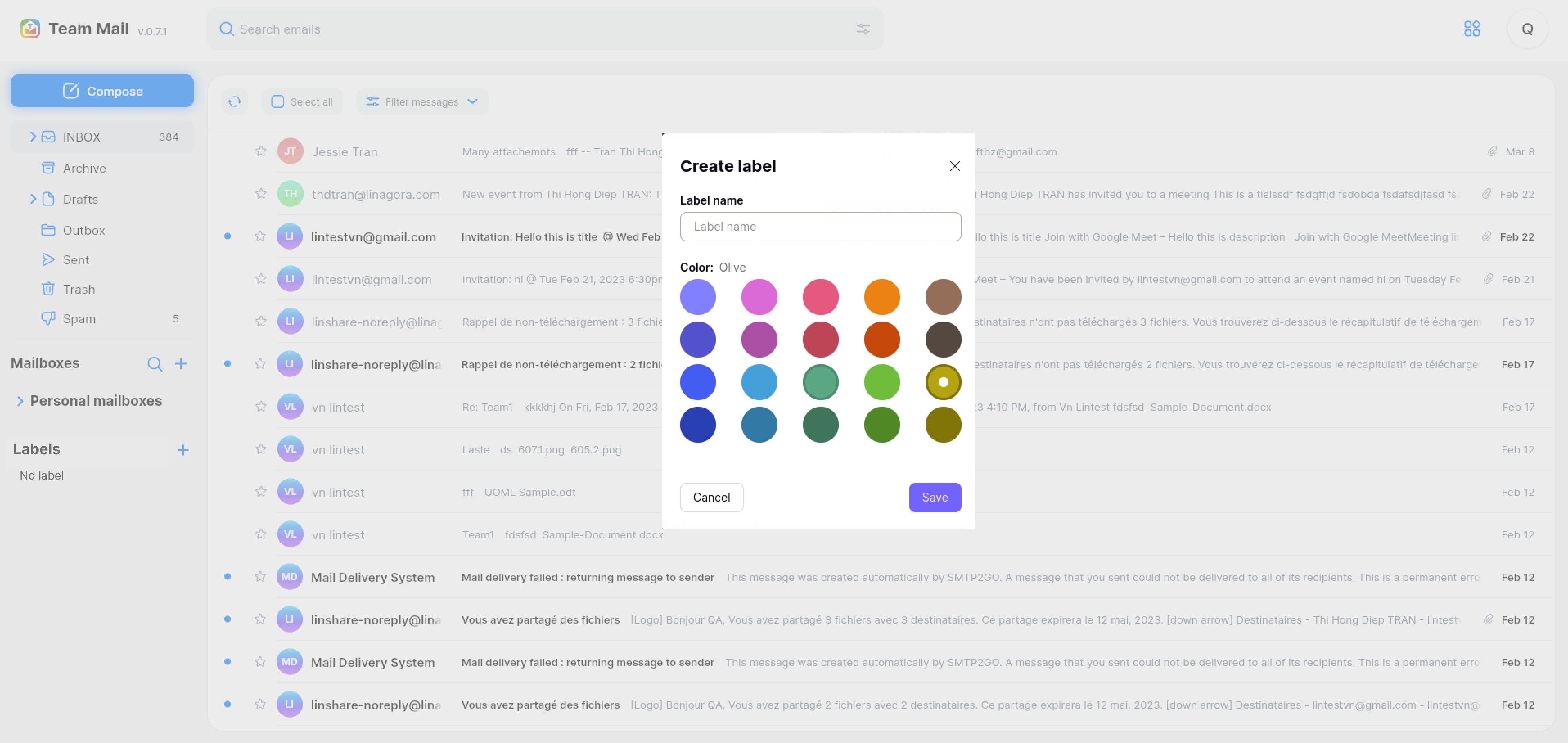
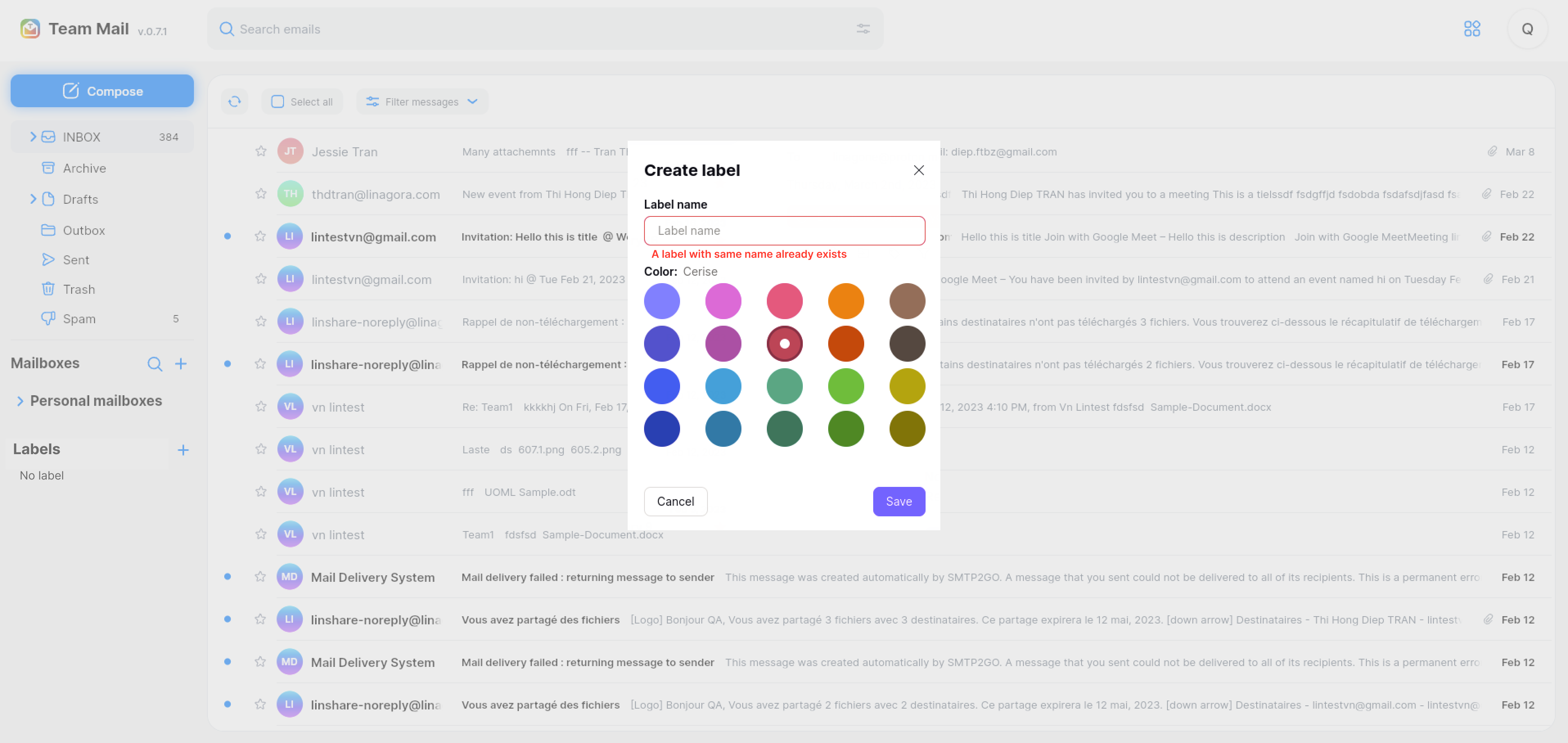
- I click on this button, there will be a popup displayed. I need to fill in:
- Field “Name: Input label’s name. This is mandatory field and the max length of label name is as same as max length of mailbox’s name
- Color: I can select a color for the label from a color palette. Default is no color.
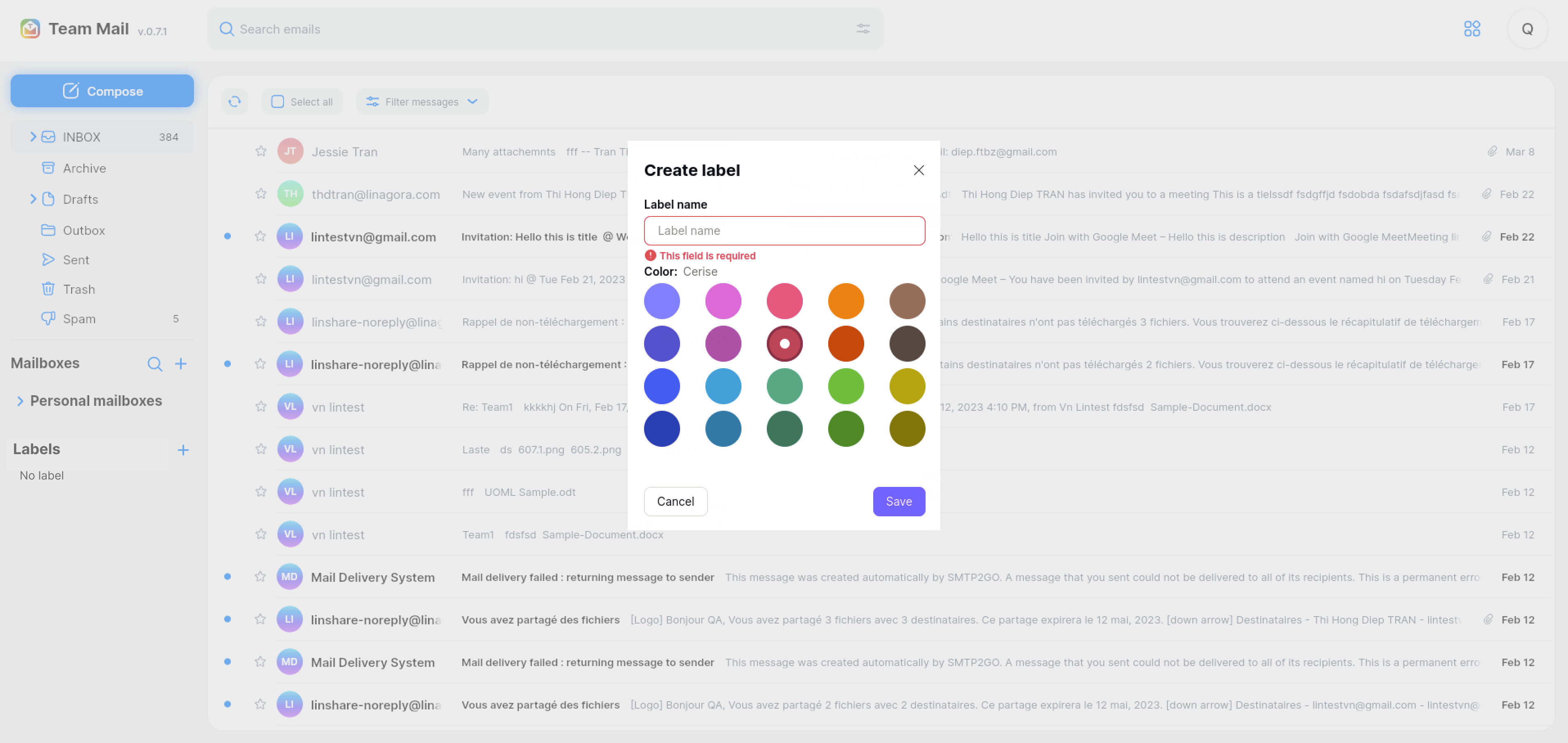
- After inputting name and selecting the color for the new label, I click button Save, the system will validate:
- If the field “Name’ is blank, there will be an error message: “This field is required.”
- If there is existing label with the same name, there will be an toast message: “ A label with this name already exists”
- If there is no error, new label will be created and it appears in label list in left panel with selected color.
UC3. Edit a label
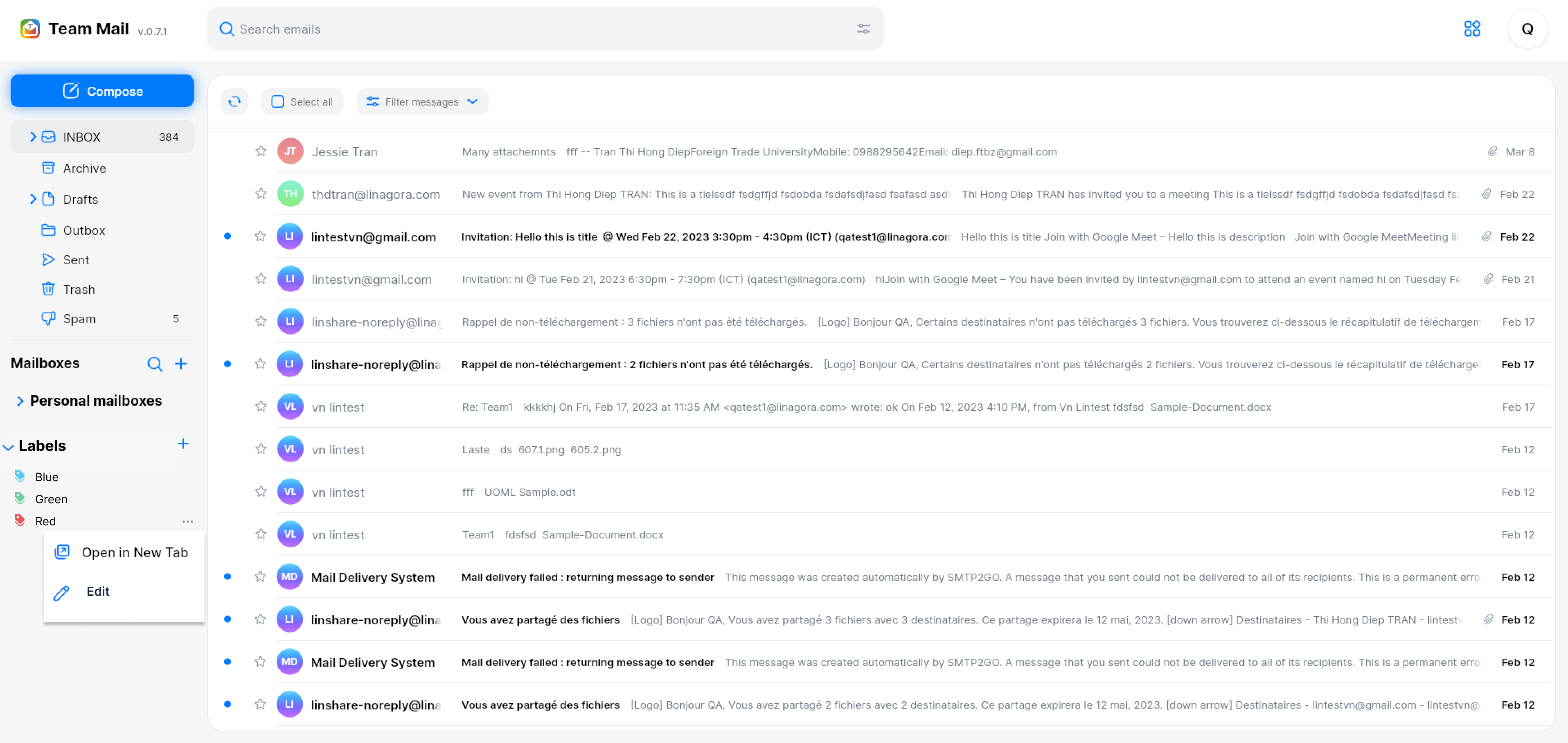
- I click on three-dot button of a label in left panel, a list of actions is shown: Open in new tab, Edit and Delete
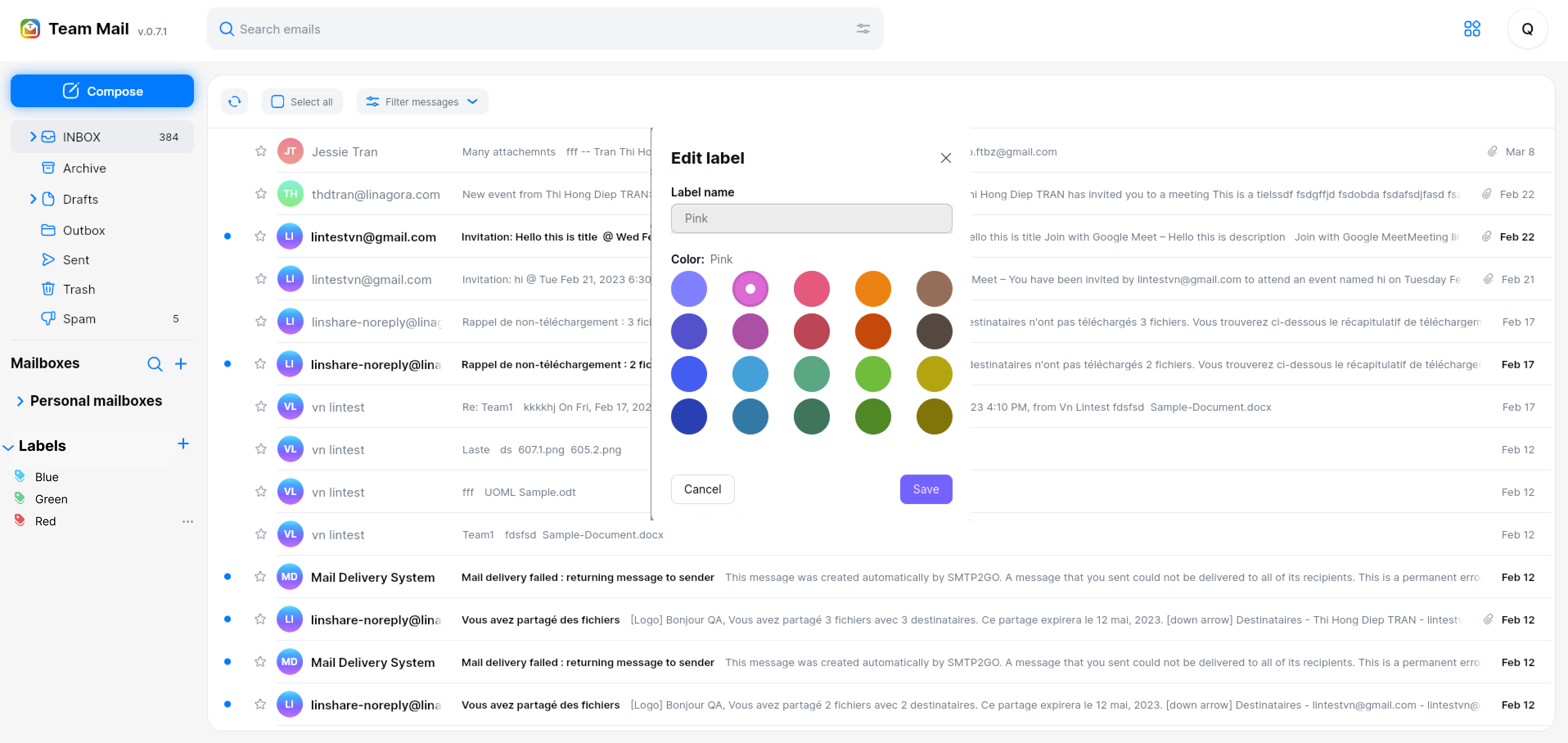
- I select Edit, the popup of label will be displayed:
- The popup is as same as popup when I create the label
- Name of label is displayed but I cannot edit this name
- I can only select another color for this label then click button Save
- The new color is update for the label and all the messages that have this label will be updated with new color too.
Screenshots
None
Misc
None